

Mobile
Config
In order to have functional UI for mobile you need to set the ui.mobile config to true.
Mobile Viewer IFC
A plugin with specific mobile interactions is natively available in the BIMDataViewer. To use it, give the "mobile" window name as second argument of the mount method when mounting the BIMDataViewer into the DOM.
bimdataViewer.mount("#app", "mobile");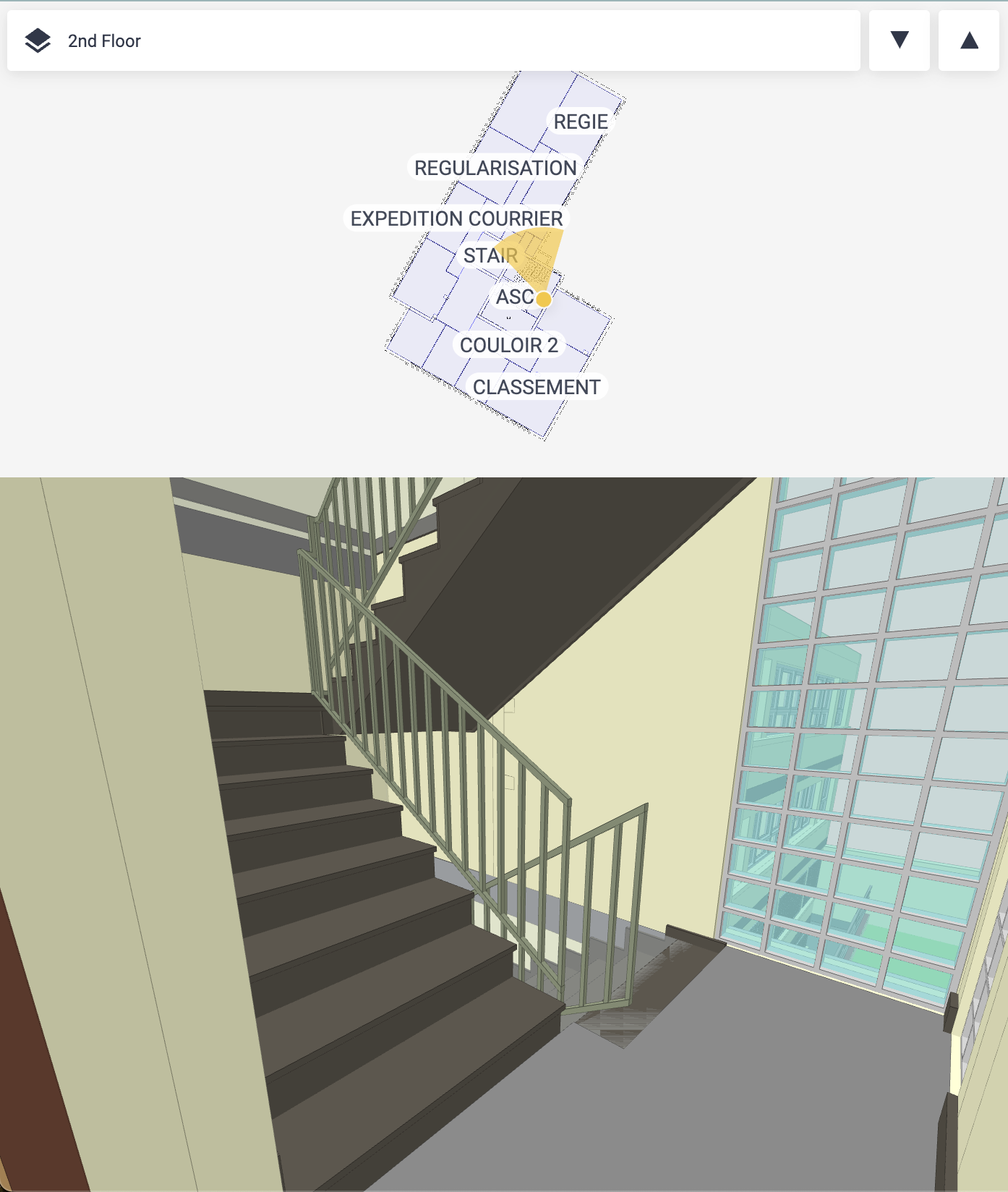
The plugin is composed of three main elements from top to bottom:
- storey selector
- viewer 2D as a mini map
- viewer 3D
It has the following instance API:
| property | Description |
|---|---|
map2dShown: boolean | If false, the viewer 2D or mini map is not shown. |
viewer2d: Object | The Vue.js component holding the BIMData 2D-Engine on the engine2d property. |
viewer3d: Object | The Vue.js component holding the 3D viewer from the xeokit-sdk on the xeokit property. |
const mobilePlugin = $viewer.globalContext.plugins.get("mobile")[0];

const engine2d = mobilePlugin.viewer2d.engine2d;
const xeokit = mobilePlugin.viewer3d.xeokit;
Mobile Viewer Plan
You can use the mobile specific plan viewer with the "mobile-plan" window.
bimdataViewer.mount("#app", "mobile-plan");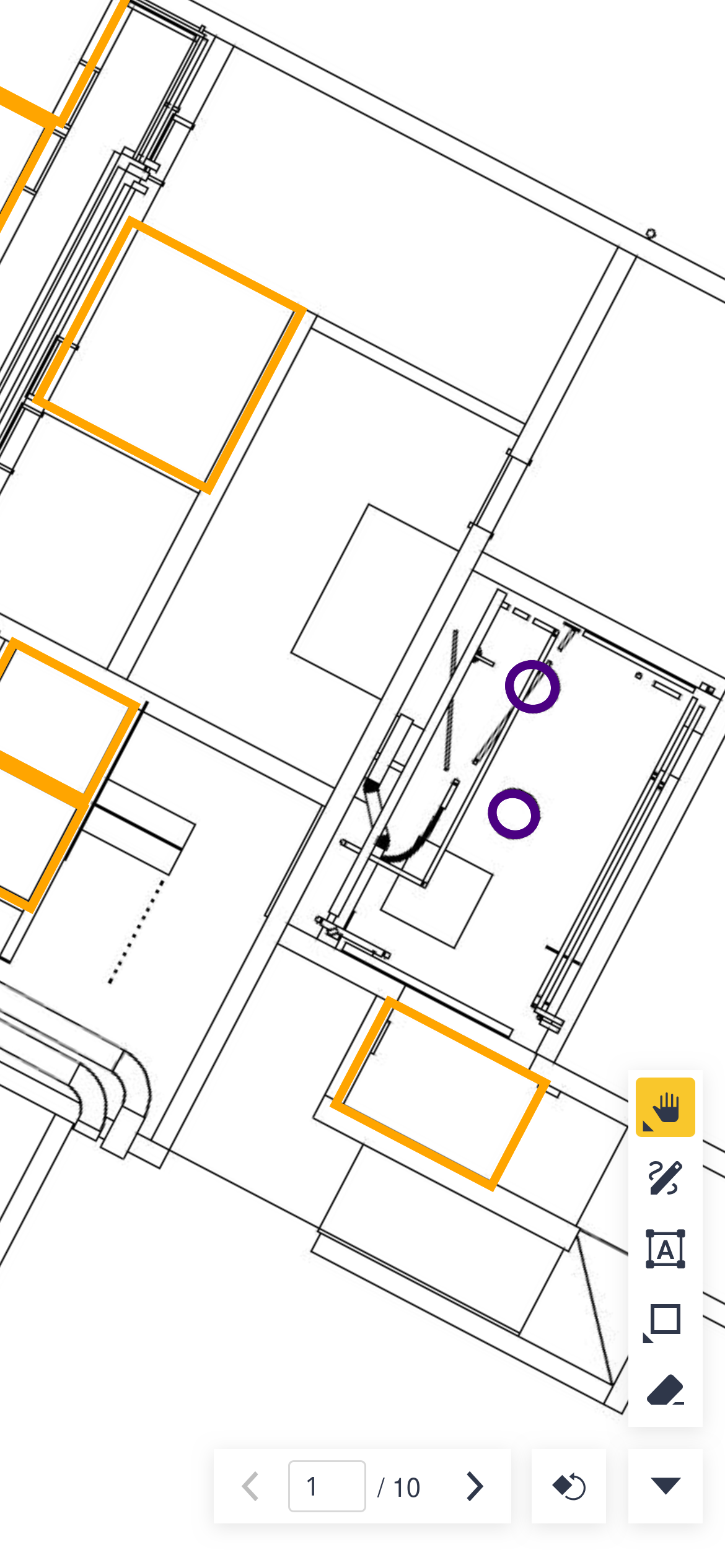
Mobile Viewer DWG / DXF
You can use the mobile DWG viewer with the "mobile-dwg" window (or "mobile-dxf" for DXF models).
bimdataViewer.mount("#app", "mobile-dwg"); // for DWG
bimdataViewer.mount("#app", "mobile-dxf"); // for DXF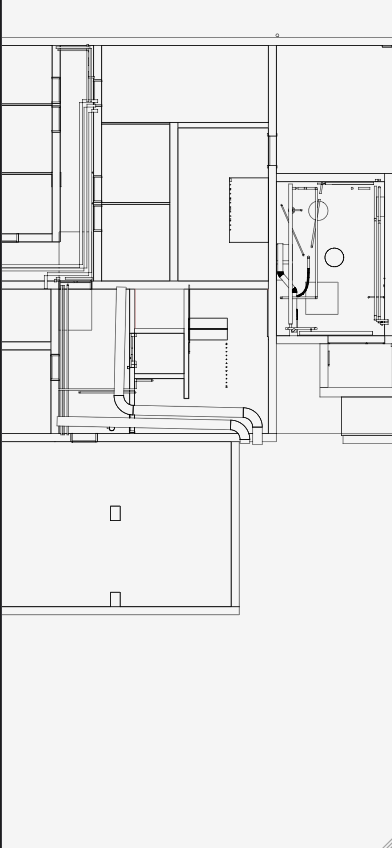
Loading model
The model loaded into the mobile plugin is the one loaded on the localContext.
this.$viewer.localContext.loadModels([myModelId]);Or at startup using the config object of the makeBIMDataViewer function.
const bimdataViewer = makeBIMDataViewer({
  api: {
    modelIds: [15097], // < ---
    cloudId: 10344,
    projectId: 237466,
    accessToken: "TAbdyPzoQeYgVSMe4GUKoCEfYctVhcwJ",
  },
});
Mobile browsers
If you plan to embed the viewer into a web page that will be accessed on mobile make sure to add the following <meta /> tag in the <head> of your html document:
<meta name="viewport" content="width=device-width,initial-scale=1.0" />This ensure that the viewer is displayed properly on both desktop and mobile devices (learn more).